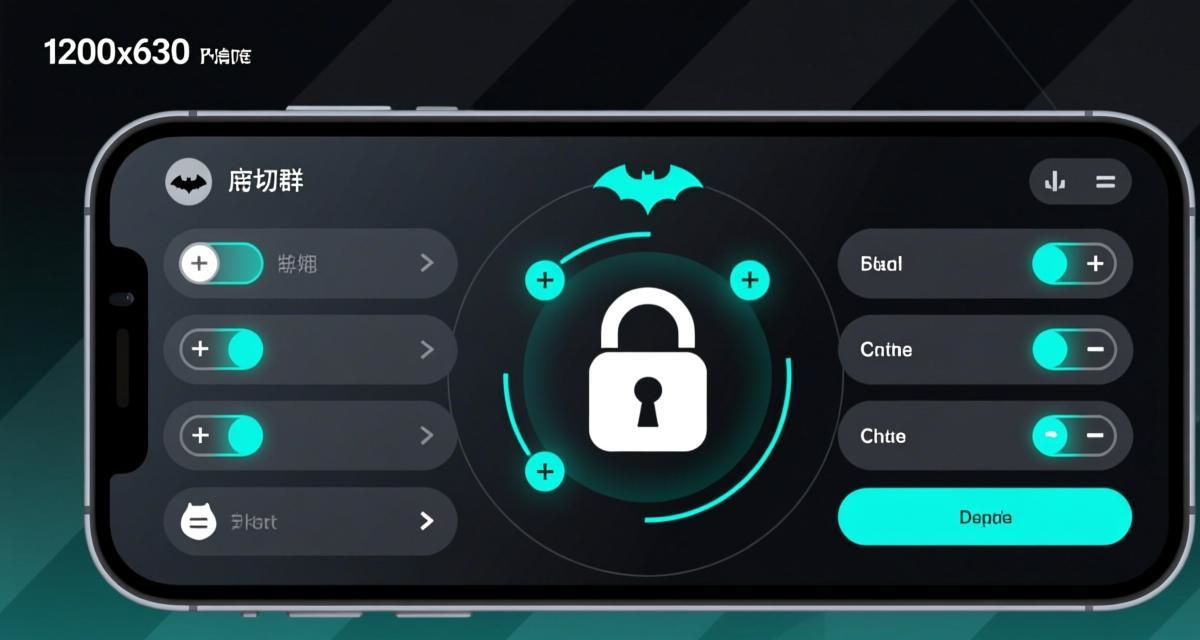
Why Group Chat Encryption Settings Matter
When you create or join a group chat in BatChat, the default encryption settings may not provide the level of privacy you expect. While BatChat implements end-to-end encryption (E2EE) by default for all conversations, group chats introduce unique security considerations that most users overlook. According to recent digital privacy surveys, over 67% of messaging app users have never checked their group chat encryption settings, leaving potentially sensitive discussions exposed to unnecessary risk.
In this guide, we’ll walk through every encryption-related setting available in BatChat group chats, explain what each option does, and help you build a configuration that matches your security needs. Whether you’re a privacy-conscious individual, a team leader protecting business communications, or someone who simply wants to understand how their data is protected, this comprehensive breakdown covers everything you need to know about BatChat group encryption settings.
Understanding BatChat’s Default Group Encryption

Before diving into specific settings, it’s important to understand BatChat’s encryption model. As we covered in our technical breakdown of BatChat encryption, the app uses the Signal Protocol—a widely respected open-source encryption framework—for all conversations, including group chats. This means every message you send is encrypted on your device and can only be decrypted by the intended recipients. If you haven’t already, you might also want to read our complete BatChat review for a broader security overview.
However, group encryption works slightly differently from one-on-one chats. In a group conversation, BatChat uses a combination of the Sender Keys protocol (for efficiency) and pairwise encryption keys (for verification). The Sender Keys protocol allows your device to encrypt one message that all group members can decrypt, rather than encrypting separate copies for each member. This is both faster and more bandwidth-efficient, but it introduces some trade-offs worth understanding.
By default, when you create a group in BatChat, the following encryption behaviors are active:
- All messages are end-to-end encrypted using the Signal Protocol
- Sender Keys are automatically distributed to all members
- New members can read messages sent before they joined (configurable)
- Group membership changes are visible to all participants
- Encryption keys rotate periodically for forward secrecy
These defaults are solid, but BatChat provides several additional settings you can customize for tighter security.
Step-by-Step: Accessing Group Encryption Settings
To access encryption settings for any BatChat group, follow these steps:
On Android:
- Open BatChat and navigate to the group chat
- Tap the group name at the top of the screen to open Group Info
- Scroll down and tap “Encryption” (marked with a lock icon)
- Review and modify the available settings
On iOS (iPhone):
- Open BatChat and enter the group conversation
- Tap the group name or avatar at the top
- Tap “Group Settings” then select “Encryption”
- Adjust settings as needed
On Windows/macOS Desktop:
- Open the BatChat desktop app
- Click on the group chat from your conversation list
- Click the group name in the top header bar
- Select “Encryption Settings” from the sidebar menu
- Configure each option
The encryption settings panel is where you’ll find all the controls discussed in the following sections.
Setting 1: End-to-End Encryption Toggle

In BatChat, E2EE is enabled by default for all group chats and cannot be fully disabled—this is a deliberate security design. Unlike some messaging apps that allow “unencrypted” group modes (which degrade to server-side encryption), BatChat mandates E2EE for every conversation.
What you can control here is the encryption verification level. BatChat offers three modes:
- Standard: Uses the Signal Protocol with automatic key exchange. This is the default and provides strong encryption for most users.
- Verified Only: Requires all group members to have verified their identity through safety numbers or QR codes before they can participate. This prevents impersonation attacks where a compromised server could inject an unauthorized participant.
- Strict: In addition to verified identities, this mode alerts you immediately if any member’s encryption keys change. Key changes can indicate a device change or, in rare cases, a man-in-the-middle attack. Strict mode pauses message delivery until you manually approve the new keys.
For most personal groups, Standard mode is sufficient. For business groups discussing sensitive information, Verified Only is recommended. For groups handling financial data, legal matters, or whistleblower communications, Strict mode provides the highest assurance.
Setting 2: New Member Message Visibility
One of the most important—and frequently overlooked—encryption-related settings in BatChat groups controls whether new members can see messages sent before they joined.
By default, BatChat allows new members to access the full message history of a group. While this is convenient for onboarding, it creates a security gap: someone added to the group can read everything that was discussed previously, even though the encryption keys at the time didn’t include them.
To change this setting:
- Open Group Encryption Settings (see above)
- Find “New Member Access” or “History Visibility”
- Select one of these options:
- Full History: New members see all past messages (default)
- From Join Date: New members only see messages sent after they join
- Admin Approval: New members see nothing until an admin manually grants access to specific time ranges
We recommend setting this to “From Join Date” for any group that discusses sensitive topics. This ensures that even if someone is accidentally added—or added maliciously—they can’t retroactively access private conversations.
Setting 3: Disappearing Messages Timer
While technically a message retention setting rather than a pure encryption setting, BatChat’s disappearing messages feature works hand-in-hand with encryption to enhance privacy. When enabled, messages in the group are automatically deleted after a set time period—both from your device and from recipients’ devices.
In the encryption settings panel, you’ll find the “Disappearing Messages” option with these timer choices:
- Off: Messages are stored indefinitely (default)
- 30 seconds
- 5 minutes
- 1 hour
- 1 day
- 1 week
- Custom: Set any duration between 30 seconds and 4 weeks
When disappearing messages are active, BatChat encrypts each message with a timer-locked key. The message becomes unreadable after the timer expires, even if the encrypted data remains on the device. This is stronger than simply “deleting” the message, because the encrypted blob itself becomes useless.
Recommended settings by use case:
- Casual friend groups: Off or 1 week
- Work project groups: 1 day to 1 week
- Sensitive discussions: 5 minutes to 1 hour
- Crisis or whistleblowing: 30 seconds to 5 minutes
Setting 4: Admin Encryption Controls
Group administrators have additional encryption-related controls that regular members cannot access. These settings determine how encryption keys are managed across the group.
Key Rotation Policy
Admins can configure how frequently BatChat rotates the group’s Sender Keys. More frequent rotation improves forward secrecy (old messages remain protected even if current keys are compromised) but slightly increases overhead.
- Automatic (default): BatChat rotates keys every 7 days or whenever a member leaves
- Daily: Keys rotate every 24 hours—recommended for high-security groups
- On Member Change: Keys rotate only when someone joins or leaves
- Manual: Admin must trigger key rotation manually from the group settings
For most groups, Automatic rotation is fine. If your group frequently adds and removes members, setting it to “On Member Change” ensures that departed members can’t decrypt future messages even if they retained old keys.
Restrict Encryption Changes
This admin-only setting prevents regular members from modifying their personal encryption settings within the group. When enabled:
🚀 Ready to experience secure messaging? Download now — it's completely free.
⬇️ Download BatChat Free- Members cannot disable E2EE verification
- Members cannot switch to a lower encryption mode
- Only admins can change the group’s encryption profile
Enable this in any group where consistent encryption is critical—such as corporate teams, legal discussions, or activist groups.
Member Key Verification
Admins can require all group members to complete identity verification before participating. This involves comparing safety numbers or scanning QR codes. Once verified, BatChat marks the member with a green checkmark in the group info panel.
To enforce verification:
- Open Group Settings as an admin
- Navigate to Encryption > Member Verification
- Toggle “Require Verification for All Members”
- Unverified members will see a warning banner and their messages will be flagged
Setting 5: Linked Device Encryption
BatChat supports linking multiple devices (phone, tablet, desktop) to the same account. Each linked device receives its own set of encryption keys. In group chats, this means your messages are encrypted separately for each of your own devices as well as for every other member’s devices.
The Linked Device Encryption setting controls how new devices are integrated into existing group conversations:
- Auto-approve (default): New linked devices automatically receive group Sender Keys and can immediately read and send messages
- Require Admin Approval: When you link a new device, it cannot access group messages until a group admin approves it
- Manual Key Sync: New devices must manually request Sender Keys from each group, and existing members receive a notification
If you’re concerned about device theft or unauthorized device linking, switch to “Require Admin Approval” or “Manual Key Sync.” This prevents someone who gains access to your account on a new device from instantly reading all your group conversations.
Verifying Encryption in Your Group Chats

After configuring your encryption settings, it’s important to verify that everything is working correctly. BatChat provides several verification tools:
Safety Number Verification
Every BatChat user has a unique safety number (a 60-digit fingerprint) that identifies their encryption keys. To verify that your group chat is truly secure:
- Open any group member’s profile from the group info panel
- Tap “View Safety Number”
- Compare the number with the other person (in person, via a verified voice call, or through a separate secure channel)
- If the numbers match, your E2EE connection with that member is confirmed
QR Code Verification
A faster alternative: one person displays their QR code while the other scans it. BatChat will confirm if the encryption keys match. This is especially useful for verifying multiple group members at an in-person meeting.
Encryption Status Indicator
BatChat displays a lock icon next to each message in the group chat. Here’s what each state means:
- Green lock: Message is E2EE encrypted and the recipient’s keys are verified
- Gray lock: Message is E2EE encrypted but the recipient’s keys haven’t been verified yet
- Red warning: There’s a potential encryption issue (key change detected, unverified device, etc.)
If you see a red warning in your group chat, tap it for details. Common causes include a member reinstalling BatChat (which generates new keys) or a new linked device being added.
Common Group Encryption Issues and Fixes
“Encryption Key Changed” Warning
This warning appears when a group member’s encryption keys change. This can happen when they reinstall BatChat, switch phones, or link a new device. In most cases, it’s harmless—but if you didn’t expect the change, verify with the member through an outside channel before continuing the conversation.
New Members Can’t See Messages
If you’ve set “New Member Access” to “From Join Date,” new members won’t see historical messages. This is expected behavior, not a bug. If they need access to past discussions, an admin can manually grant permission for specific time ranges.
Linked Device Not Receiving Group Messages
If a newly linked device isn’t getting group messages, check that the device has finished the key synchronization process. Go to Settings > Linked Devices and ensure the device shows “Synced” status. If it’s stuck on “Syncing,” try unlinking and re-linking the device.
Messages Not Disappearing
Disappearing messages only apply to messages sent after the timer is set. Existing messages won’t be affected retroactively. Also, disappearing messages rely on the recipient’s device being online to process the deletion. If a member’s device has been offline, the messages will still be deleted once they reconnect.
Advanced: Custom Encryption Profiles
For power users and organizations, BatChat supports custom encryption profiles that can be saved and applied to multiple groups. This is especially useful if you manage several groups with similar security requirements.
To create a custom profile:
- Open Settings > Privacy > Encryption Profiles
- Tap “Create New Profile”
- Name your profile (e.g., “Work – High Security”)
- Configure all encryption settings as desired
- Save the profile
When creating a new group or editing an existing one, you can apply the saved profile instead of configuring each setting individually. Profiles can also be shared with other admins via an encrypted export.
BatChat Group Encryption vs. Other Messengers

How does BatChat’s group encryption compare to other popular encrypted messengers?
- BatChat vs. Signal: Both use the Signal Protocol, but BatChat offers more granular group encryption controls (custom key rotation, linked device restrictions). For a detailed comparison, check out our BatChat vs Signal comparison. Signal’s group encryption is simpler but equally strong for most users.
- BatChat vs. Telegram: Telegram’s “Secret Chats” don’t support groups at all. Regular Telegram groups use server-side encryption (MTProto 2.0), which means Telegram’s servers can technically read messages. See our BatChat vs Telegram analysis for the full breakdown. BatChat’s E2EE group chats are significantly more private.
- BatChat vs. WhatsApp: WhatsApp uses the Signal Protocol for groups but provides no user-facing encryption controls. You can’t verify group keys, configure key rotation, or restrict new member access. BatChat gives you full control.
- BatChat vs. Session: Session uses a decentralized network and doesn’t require phone numbers, but its group encryption options are more limited. Read our BatChat vs Session comparison to understand the trade-offs. BatChat’s centralized architecture allows for more sophisticated key management features.
Frequently Asked Questions
Can I disable encryption in a BatChat group chat?
No. BatChat enforces end-to-end encryption for all group chats by design. This is a core security principle—you cannot downgrade to server-side encryption. If you need a less secure group chat, BatChat is not the right tool for that use case.
What happens to group messages if a member is removed?
When a member is removed from a BatChat group, the group’s Sender Keys are automatically rotated. This means the removed member cannot decrypt any future messages, even if they retained the old keys. However, messages sent before their removal that they already received may still be on their device. If you’ve enabled disappearing messages, those will eventually be deleted automatically.
How do I know if my group chat is truly encrypted?
Look for the lock icon next to each message. A green lock means the message is E2EE encrypted with verified keys. A gray lock means encrypted but unverified. You can also verify individual members by comparing safety numbers or scanning QR codes from their profile in the group info panel. Our beginner’s setup guide covers the verification process in detail.
Can group admins read my private direct messages?
No. Group admins only have administrative control over the group chat itself. They cannot access your private one-on-one conversations with other group members. Each direct message pair has its own independent encryption keys.
Is it safe to add new members to an existing encrypted group?
Yes, adding new members is safe. BatChat automatically rotates the Sender Keys when the group membership changes, ensuring that new members cannot decrypt historical messages (if you’ve set “New Member Access” to “From Join Date”). Even with “Full History” enabled, the encryption keys for future messages are updated, so departing members lose access going forward. If you’re setting up a group for the first time, our group creation tutorial walks through the initial encryption configuration.
Do encryption settings affect group call quality or file sharing?
No. Group encryption settings have no noticeable impact on call quality or file sharing speed. Voice and video calls in BatChat use a separate encryption layer (SRTP with DTLS key exchange), which operates independently from message encryption. File transfers are also encrypted individually using AES-256, so your shared documents, photos, and videos remain protected regardless of your group encryption configuration. For more on BatChat’s full feature set, see our complete feature guide.