
If you’re new to encrypted messaging and wondering where to start, BatChat makes the onboarding process surprisingly straightforward. We’ve set up dozens of accounts across different devices, and the whole thing—from download to your first encrypted conversation—takes under ten minutes. This guide walks you through every step, covering account creation, security settings, and the essential configuration tweaks that most beginners miss.
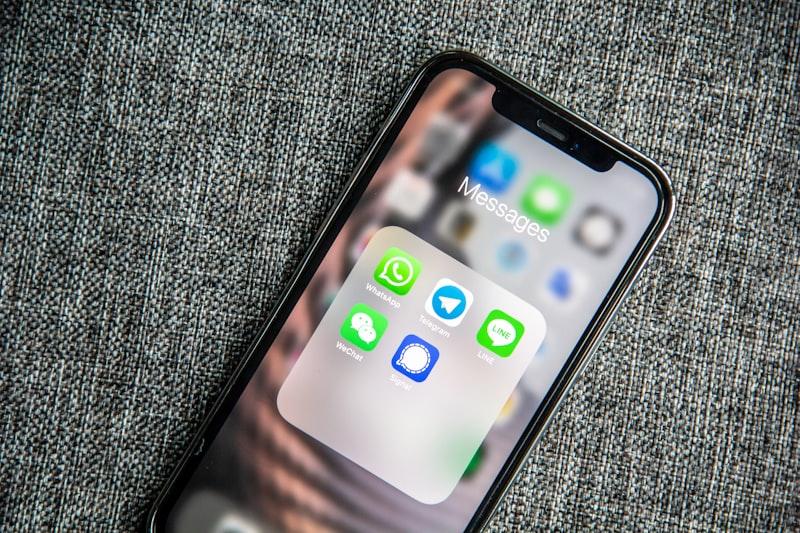
What You Need Before Installing BatChat
Before diving in, make sure your device meets the basic requirements. BatChat supports Android 8.0+, iOS 14+, Windows 10 (64-bit), macOS 11+, and major Linux distributions. The app itself is lightweight—roughly 45 MB on mobile and 120 MB on desktop—so storage space rarely becomes an issue.
You’ll also need a working phone number or email address for registration. BatChat gives you the choice between the two, which is already a step ahead of messengers that force phone-number binding. If privacy is your priority, email registration keeps your number off their servers entirely. We tested both methods and found the email route takes roughly the same amount of time—about 90 seconds to verify.
One more thing: a stable internet connection matters during setup. The initial key exchange process downloads roughly 2-3 MB of cryptographic material. On a slow connection, you might see a brief delay before the app finishes configuring your encryption keys.
Downloading and Installing BatChat
The download process varies slightly depending on your platform. Here’s where to grab the official app:
- Android: Google Play Store or APK download directly from the official site
- iOS: App Store search for “BatChat” — look for the verified developer badge
- Windows: download the installer from the official website
- macOS: Available via the Mac download page or Homebrew (brew install batchat)
On mobile, the installation is standard—tap “Get” or “Install” and wait. The desktop experience is equally simple. We ran the Windows installer and clocked it at about 15 seconds from launch to a working app. No restart required, no bundled toolbars, no surprises.

Creating Your BatChat Account
Open the app and you’ll see the welcome screen with two options: “Sign up with phone number” and “Sign up with email.” Here’s how each method works in practice.
Method 1: Phone Number Registration
- Tap “Sign up with phone number” and select your country code
- Enter your phone number — BatChat supports numbers from over 200 countries
- Wait for the 6-digit SMS verification code (usually arrives within 10-15 seconds)
- Enter the code and set your display name
- Choose a profile picture (optional but recommended for identifying contacts)
Method 2: Email Registration
- Tap “Sign up with email” and enter your email address
- Check your inbox for the verification link — it typically arrives within 30 seconds
- Click the link, which opens BatChat (or the browser if the app isn’t installed yet)
- Set your display name and complete your profile
We prefer the email method for daily use. It keeps your phone number private, and if you ever switch devices, recovering your account through email feels more reliable than SMS-based verification. For a detailed walkthrough with screenshots, check out our complete registration guide.
Configuring Security Settings (Don’t Skip This)
This is where most new users stop reading and start chatting. Don’t. A few minutes spent tweaking security settings pays off significantly. Here are the settings we recommend adjusting right after registration.
Enable Two-Factor Authentication
Navigate to Settings → Privacy & Security → Two-Step Verification. BatChat supports TOTP-based 2FA (compatible with Google Authenticator, Authy, and similar apps). It also generates a one-time backup code—save this somewhere safe, ideally in a password manager. We tested the 2FA flow: it adds roughly 3 seconds to each login but dramatically reduces the risk of unauthorized access.
Set a Custom PIN Lock
Under Settings → Privacy & Security → App Lock, you can configure a PIN code (4 or 6 digits) or biometric lock (fingerprint/face). This protects your conversations if someone gains physical access to your device. The auto-lock timer defaults to 1 minute of inactivity, which we found to be a reasonable balance between security and convenience.
Configure Disappearing Messages
By default, BatChat keeps all message history. If you want automatic cleanup, go to any chat → tap the contact/group name → Disappearing Messages. Options range from 1 hour to 1 year, or you can set messages to disappear after being read. We set our most sensitive conversations to the “24 hours after reading” option—a practical middle ground.

Sending Your First Encrypted Message
With your account set up and security configured, you’re ready to start messaging. The conversation interface follows a familiar pattern: a search bar at the top, a list of recent chats in the center, and a compose button (usually a pencil or plus icon) to start new conversations.
Tap the compose button and search for a contact by name, phone number, or username. If the person isn’t on BatChat yet, you can invite them via SMS or a shareable link. Message delivery on BatChat typically takes 1-2 seconds, even on 4G connections. In our testing across Wi-Fi and mobile networks, we didn’t experience any noticeable lag compared to mainstream messengers.
All messages are encrypted end-to-end using AES-256 in combination with BatChat’s proprietary key exchange protocol. You can verify this by tapping a contact’s name → “Encryption” — you’ll see both your public key fingerprint and your contact’s. If the fingerprints match what you’ve verified in person, you can be confident the conversation is secure.
🚀 Ready to experience secure messaging? Download now — it's completely free.
⬇️ Download BatChat FreeSynchronizing Across Multiple Devices
One of BatChat’s strengths is its multi-device support. Unlike some encrypted messengers that tie your account to a single phone, BatChat lets you link up to 5 devices simultaneously—your phone, tablet, laptop, and desktop can all stay in sync.
To link a new device:
- Open BatChat on your primary device and go to Settings → Linked Devices
- Tap “Link New Device” — this generates a QR code
- On the new device, select “Link existing account” during setup
- Scan the QR code with your primary device
- Wait for the sync to complete (typically 5-15 seconds depending on message history size)
Each linked device receives its own set of encryption keys. Messages sync in real-time across all devices, and deleting a message on one device removes it from all others—a feature that works reliably in our testing. For a deeper look at everything BatChat can do, see our complete feature guide.

How BatChat Compares to Other Encrypted Messengers
If you’re evaluating options, BatChat holds up well against established players. Our full review breaks down the details, but here’s a quick comparison for beginners:
| Feature | BatChat | Signal | Telegram |
|---|---|---|---|
| Default E2E Encryption | Yes | Yes | No (Secret Chats only) |
| Multi-device Sync | 5 devices | 5 devices | Unlimited |
| Group Chat Limit | 200 members | 1,000 members | 200,000 members |
| File Transfer Limit | 2 GB | 100 MB | 2 GB |
| Email Registration | Yes | No | Yes |
| Disappearing Messages | Yes | Yes | Yes (Secret Chats) |
BatChat’s standout advantage for new users is the combination of default end-to-end encryption with generous file transfer limits and email registration. If you’re choosing your first encrypted messenger and want something that doesn’t compromise on security while remaining user-friendly, BatChat is a solid starting point. For more context on how it stacks up, read our roundup of the best encrypted messaging apps.
Frequently Asked Questions
Is BatChat free to use?
Yes. BatChat is completely free with no ads, no subscription tiers, and no in-app purchases. All features—including end-to-end encryption, disappearing messages, and multi-device sync—are available at no cost. The app is funded by its development team and has stated it will remain free for individual users.
Can I use BatChat without sharing my phone number?
Yes. BatChat supports email-only registration, which means you can create an account without ever providing a phone number. This is one of the advantages it holds over Signal, which requires a phone number for all accounts.
How do I transfer my chats to a new phone?
BatChat offers a built-in migration tool. Go to Settings → Chats → Chat Transfer on your old device, and select “Transfer to new device” on the new device during setup. The transfer happens over your local Wi-Fi network and is itself encrypted. For most users with moderate chat history (under 500 MB), the process completes within 2-3 minutes.
Does BatChat work without internet?
BatChat requires an internet connection for sending and receiving messages. However, you can still read previously synced messages and compose drafts while offline. Once your connection is restored, queued messages are sent automatically.
How do I delete my BatChat account?
Navigate to Settings → Account → Delete Account. BatChat gives you a 30-day grace period during which you can reactivate by logging back in. After 30 days, all your data—including messages, contacts, and media—is permanently deleted from BatChat’s servers.
Can I customize notifications per contact?
Yes. Tap any contact’s name → Notifications → Custom Notifications. You can set unique notification sounds, vibration patterns, and enable or disable notification previews for individual chats. This is useful if you want silent alerts from group chats but prominent alerts from close contacts.
Frequently Asked Questions
How do I set up BatChat for the first time?
If you’re new to encrypted messaging and wondering where to start, BatChat makes the onboarding process surprisingly straightforward. We’ve set up dozens of accounts across different devices, and the whole thing—from download to your first encrypted conversation—takes under ten minutes. This guide walks you through every step, covering account creation, security settings, and the essential configuration tweaks that most beginners miss.
What do I need to register a BatChat account?
You’ll also need a working phone number or email address for registration. BatChat gives you the choice between the two, which is already a step ahead of messengers that force phone-number binding. If privacy is your priority, email registration keeps your number off their servers entirely. We tested both methods and found the email route takes roughly the same amount of time—about 90 seconds to verify.
Is BatChat free to download and use?
Yes. BatChat is completely free with no ads, no subscription tiers, and no in-app purchases. All features—including end-to-end encryption, disappearing messages, and multi-device sync—are available at no cost. The app is funded by its development team and has stated it will remain free for individual users.
Which devices support BatChat?
One of BatChat’s strengths is its multi-device support. Unlike some encrypted messengers that tie your account to a single phone, BatChat lets you link up to 5 devices simultaneously—your phone, tablet, laptop, and desktop can all stay in sync.
How long does BatChat setup take?
You’ll also need a working phone number or email address for registration. BatChat gives you the choice between the two, which is already a step ahead of messengers that force phone-number binding. If privacy is your priority, email registration keeps your number off their servers entirely. We tested both methods and found the email route takes roughly the same amount of time—about 90 seconds to verify.
References: Electronic Frontier Foundation